jlPlayer is a totally theme-able, customizable audio player, built upon the HTML5, jQuery, & jQuery UI frameworks.
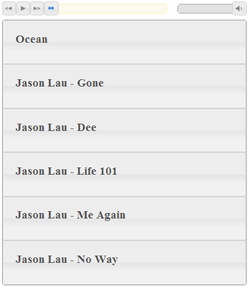
jlPlayer Demo Screenshot
Have a look at the demo!
Download the entire package from my GitHub repository, or become a contributing developer.
Features Include:
- 100% opensource and FREE! No ads, tricks, gimmicks, or pitches.

- Play, pause, <<, >>, volume, and progress.
- Create a playlist of any length, including titles, and descriptions.
- Loop, auto-advance, auto-start, shuffle.
- Fully customizable using CSS, and/or the jQuery UI Framework ThemeRoller.
- Add multiple music source files for increased cross-browser support (mp3, ogg, wav).
Customizing jlPlayer
jlPlayer is easy to customize if you have some basic HTML coding experience. All of jlPlayer’s settings are adjusted within the HTML and JavaScript files, which are included in the package.
Below are some tips to help you achieve the customization you desire.
Building Your Playlist
jlPlayer’s playlist is built entirely from the basic HTML tags, <ul>, <li>, <h3>, <p>, and <a>.
The following example displays the proper structure needed for jlPlayer’s playlist.
This example is a 3-song playlist.
<!-- BEGIN PLAYLIST -->
<ul id="my_Player" class="my-Player">
  <!-- BEGIN SONG -->
  <li>
    <h3>{Song Title 1}</h3>
    <p>{Song 1 information/description}</p>
    <a href="{OGG Source URL}">ogg</a> <a href="{MP3 Source URL}">mp3</a>
  </li>
  <!-- END SONG -->
  <!-- BEGIN SONG -->
  <li>
    <h3>{Song Title 2}</h3>
    <p>{Song 2 information/description}</p>
    <a href="{OGG Source URL}">ogg</a> <a href="{MP3 Source URL}">mp3</a>
  </li>
  <!-- END SONG -->
  <!-- BEGIN SONG -->
  <li>
    <h3>{Song Title 3}</h3>
    <p>{Song 3 information/description}</p>
    <a href="{OGG Source URL}">ogg</a> <a href="{MP3 Source URL}">mp3</a>
  </li>
  <!-- END SONG -->
</ul>
<!-- END PLAYLIST -->
The entire playlist is defined from a single unordered-list (ul) tag. The ul tag must be given a class or id so it can be identified by the script.
id="my_Player" class="my-Player"
Each song is defined in the ul’s list-item (li) tags. The song’s title is defined within the heading-3 (h3) tag. The song’s info is defined within the paragraph (p) tag. The song file sources are defined using the anchor (a) tag.
<!-- BEGIN SONG -->
  <li>
    <h3>{Song Title 3}</h3>
    <p>{Song 3 information/description}</p>
    <a href="{OGG Source URL}">ogg</a> <a href="{MP3 Source URL}">mp3</a>
  </li>
  <!-- END SONG -->
The anchor (a) tag defines the source file. The link to the file is defined in the href attribute, and the file type is defined as the link text.
<a href="{OGG Source URL}">ogg</a>
There are numerous, free applications, which will convert music files from one media type to another.
I recommend Audacity (FREE).
Including jQuery, jQuery UI, and jlPlayer
jlPlayer requires both jQuery and jQuery UI. You can easily include them in your HTML document by linking to Google’s Hosted Libraries, or by downloading them from jQuery.com or jQueryUI.com.
Both scripts must be included in the head of the document, as in the following example.
<script src="/vendor/jquery-2.0.0.min.js"></script>
<link href="http://ajax.googleapis.com/ajax/libs/jqueryui/1.9.2/themes/base/jquery-ui.css" rel="stylesheet" type="text/css" />
<script src="http://ajax.googleapis.com/ajax/libs/jqueryui/1.9.2/jquery-ui.min.js"></script>
<script type="text/javascript" src="jlplayer.js"></script>
Immediately following jQuery and jQuery UI, include jlplayer.js.
Configuring jlPlayer
jlPlayer is configured, and initialized, using JavaScript, which is inserted in the <head> section of the HTML document, following jQuery, jQuery UI, and jlplayer.js.
Below, is the entire code snippet which needs to be inserted into the document’s <head> section, after jQuery, jQuery UI, and jlplayer.js.
<script type="text/javascript">
    jQuery(document).ready(function($){
        $(".my-Player").jlplayer({
             /* Default volume */
             volume: 100,

             /* Start playing when the player loads. */
             auto_start: false,

             /* Continuous play. Replay the playlist when it completes. */
             loop: false,

             /* Shuffle the playlist items when the player loads. */
             shuffle: false,

             /* Automatically advance to the next playlist item. */
             auto_advance: true,

             /* Display the volume controls. */
             volume_control: true,

             /* Display the progress bar. */
             progress_bar: true,

             /* Display the >> button. */
             button_next: true,

             /* Display the << button. */
             button_prev: true,

             /* Display the songlist */
             song_list: true,

             /* Hides the song info until the song is selected. */
             hide_song_info: true,

             /* Default CSS classes for objects and states. */
             class_player_wrapper: '',
             class_active_song: 'ui-state-highlight ui-corner-all',
             class_inactive_song: 'ui-state-default ui-corner-all',
             class_song_hover: 'ui-state-hover ui-corner-all',
             class_play_button: 'ui-state-default ui-corner-all',
             class_next_button: 'ui-state-default ui-corner-all',
             class_prev_button: 'ui-state-default ui-corner-all',
             class_progress_range: 'ui-state-error ui-corner-all',
             class_progress_bar: 'ui-state-highlight ui-corner-all',
             class_progress_handle: 'ui-state-default',
             class_volume_range: 'ui-state-default ui-corner-all',
             class_volume_bar: 'ui-widget-content ui-corner-all',
             class_volume_handle: 'ui-state-default',
             class_song_list: 'ui-widget-content ui-corner-all',
             class_song_info: 'ui-widget-content ui-corner-all',

             /* Display a link for each source in the song list. */
             display_source_links: true,

             /* Effect to use when the player is initially displayed. */
             /*  blind, bounce, clip, drop, explode, fold, highlight, puff, pulsate, scale, shake, size, slide */
             show_effect: 'fade',

             /* Options for this effect. Refer to jQuery UI documentation. http://jqueryui.com/effect/#default */
             effect_options: {},

             /* Effect duration. */
             show_duration: 1000,

             /* A callback function to run when the player first loads. */
             is_loaded: function(){ try{ console.log('Player is ready.'); }catch(e){} },

             /* Keep it unique! */
             player_id: 'jlplayer'
        });
    });
</script>
That is the entire configuration script for jlPlayer, containing all options. Each option, or set of options, is commented with a description of it’s purpose. Most of the configuration options are simple boolean values of true or false. A value of true will enable a feature, and a value of false will disable it, or hide it. The values you see in the above example are the default values for jlPlayer. Therefor, excluding any of the above listed options from your configuration will cause jlPlayer to use the default value for that option. For example, if you do not define the option “auto_start“, the player will use the default value of false, and will not auto-start.
If you simply want to use ALL default option values, then you could omit all of the options from the configuration.
<script type="text/javascript">
    jQuery(document).ready(function($){
        $(".my-Player").jlplayer();
    });
</script>
Remember adding a class or id attribute to the ul tag? This is where the class or id becomes important. JavaScript uses the class or id to locate the correct ul tag for the playlist. Without a class or id, the script would not know which ul tag to use as the playlist.
<ul id="my_Player" class="my-Player">
For the sake of this example, I am using the id “my_Player“, and class “my-Player“. The id or class names can be any unique names you choose, provided they do not contain spaces. Spaces in class names should be replaced with a dash (-). Spaces in id attributes should be replaced with underscores (_). Multiple class names can be used, provided they are delimited with spaces. However, only a single id may be used for each object.
<ul id="my_Player" class="my-Player my-Other-CSS-Class">
Refer to the beginning of the configuration script, and you will find where the class name or id attribute is required as the object’s “selector“.
$(".my-Player").jlplayer({
IMPORTANT: To use a class name for the selector you must include a dot(.) prior to the name. To use the id attribute for the selector, you must include a hash-mark(#) before the name. The example above uses the class name as the selector. The following example uses the id attribute as the selector. You can see the difference.
$("#my_Player").jlplayer({
That concludes jlPlayer’s configuration for it’s core functionality.
Styling jlPlayer
jlPlayer can be re-themed, rearranged, re-sized, re-positioned, or re-anything else you can achieve with CSS. jlPlayer comes preloaded with CSS class names, and the option to change the CSS selector name via the “player_id” option. The default player_id is “jlplayer“. Therefor, most of jlPlayer’s objects will have the prefix jlplayer- in the class names. If you change the player_id to “foobar” most of the objects would have class names with “foobar-” as the prefix. With that in mind, study the CSS I made for the demo, located in the file, “index.html” in the package.
<style type="text/css">
<!--
a{
    border-bottom: 1px dashed;
}

.jlplayer-wrapper{
    width: 400px;
    margin: 0px auto 0px auto;
    position: relative;
}

.jlplayer-button{
    position: absolute;
    top: 0px;
    width: 19px;
    height: 19px;
    padding: 2px 0px 0px 2px
}

.jlplayer-prevbutton{
   left: 0px;
}

.jlplayer-playpausebutton{
    left: 23px;
}

.jlplayer-nextbutton{
   left: 46px;
}

.jlplayer-progressbar{
    position: absolute;
    top: 4px;
    left: 79px;
    width: 190px;
}

.jlplayer-volumebar{
    position: absolute;
    top: 4px;
    left: 288px;
    width: 100px;
}

.jlplayer-songlist{
    position: absolute;
    top: 30px;
    width: 400px;
}

.jlplayer-song{
    padding: 0px 20px 10px 20px;
}

-->
</style>
You can see “jlplayer” is the prefix for jlPlayer’s objects. However, if you changed the player_id option to “foobar” the prefix would become “foobar” instead of “jlplayer“.
.foobar-wrapper{
    width: 400px;
    margin: 0px auto 0px auto;
    position: relative;
}
Re-theme jlPlayer
jlPlayer is precoded to fully support jQuery UI themes and can be re-themed using jQuery UI ThemeRoller.
The link tag, which is located in the <head> scripts, defines which CSS stylesheet file
to use. The theme which is used in the demo is named “base“, which is a jQuery UI theme. You can see the theme name, base, in the <link> tag’s href attribute.
<link href="http://ajax.googleapis.com/ajax/libs/jqueryui/1.9.2/themes/base/jquery-ui.css" rel="stylesheet" type="text/css" />
Changing the name of the theme from base to another theme name will change the theme.
Below, is a list of jQuery UI themes you can try.
- base
- ui-lightness
- ui-darkness
- smoothness
- start
- redmond
- sunny
- overcast
- le-frog
- flick
- pepper-grinder
- eggplant
- dark-hive
- cupertino
- south-street
- blitzer
- humanity
- hot-sneaks
- excite-bike
- vader
- dot-luv
- mint-choc
- black-tie
- trontastic
- swanky-purse
Alternatively, if you use ThemeRoller to create a custom theme, you simply replace the jQuery UI theme source with your custom theme source.
<link href="my-custom-theme.css" rel="stylesheet" type="text/css" />
Finding The Class Names And Id Selectors
You can determine what the class name or id attributes are for most objects by viewing the object’s source code. Most web browser programs have a built-in method for viewing the source for a webpage.
Since Google Chrome is the only web browser I recommend, I will explain how to use it to find the selectors for jlPlayer’s objects.
- Assuming you have a mouse, right-mouse-click on the player’s play button, for example.
- Select “Inspect Element” from the context menu, which opens when you right-click.
- Chrome’s Console will open, revealing the source code for the specific object you selected.
- There you will be able to see, and copy any id or class attributes the object has.
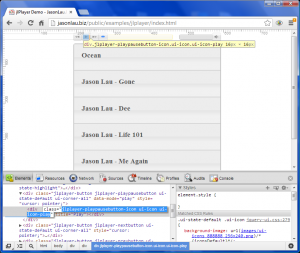
Inspecting The Elements In Google Chrome
Known Issues
- HTML5 is still in it’s toddler stage. Some browsers may not fully support it yet. Outdated browsers will fall back to the unordered list and will not display a player.
- Opera browser has a bug which causes it to crash when the HTML5 audio load() method is called. Hopefully, Opera will fix this issue soon. However, I wouldn’t consider this a critical issue, as jlPlayer works in ALL other current, major browsers. Presently, Opera only accounts for 3% of the total global web-browser traffic. I’m of the opinion most of THAT traffic is from web-developers trying to make their apps compatible with Opera.
The End
Please post a comment to report any bugs or to make suggestions. Enjoy using jlPlayer!